
Help
Rating and reviewing
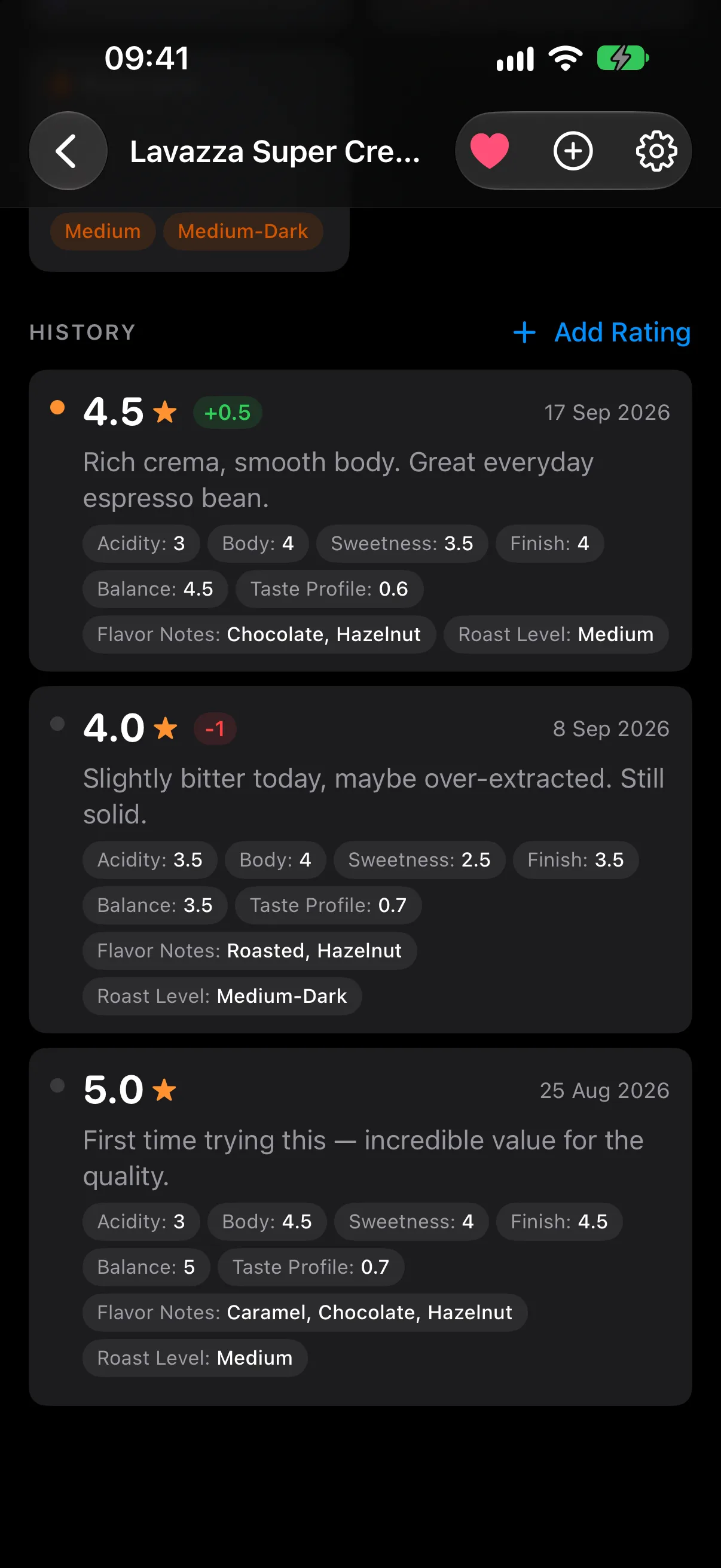
A rating in RateBud is a moment in time, not a verdict. You're expected to disagree with yourself later — that's the data the app is after.
Half stars
Open an item and tap Add Rating. Rather than tapping a star, drag your finger across them. The rating follows your finger in half-star steps with a small haptic tick at each one, so 3.5★ is as quick to record as 3★ or 4★.
Notes and photos
The notes field is free text — as long or short as you like. It feeds the insights the app generates later, so specifics are worth more than adjectives.
You can attach a photo to a review, and an item can hold several photos. On the item page you can set which one is the primary image, or delete any of them.
Revisiting an item
To rate something again, add a review to the item you already have rather than creating a new one. Either swipe the item in the list and tap Review, or scan it again and let RateBud find it.
Each item shows its full review history, newest first, so you can see what you thought last time before committing to an opinion this time.
Rating styles Pro
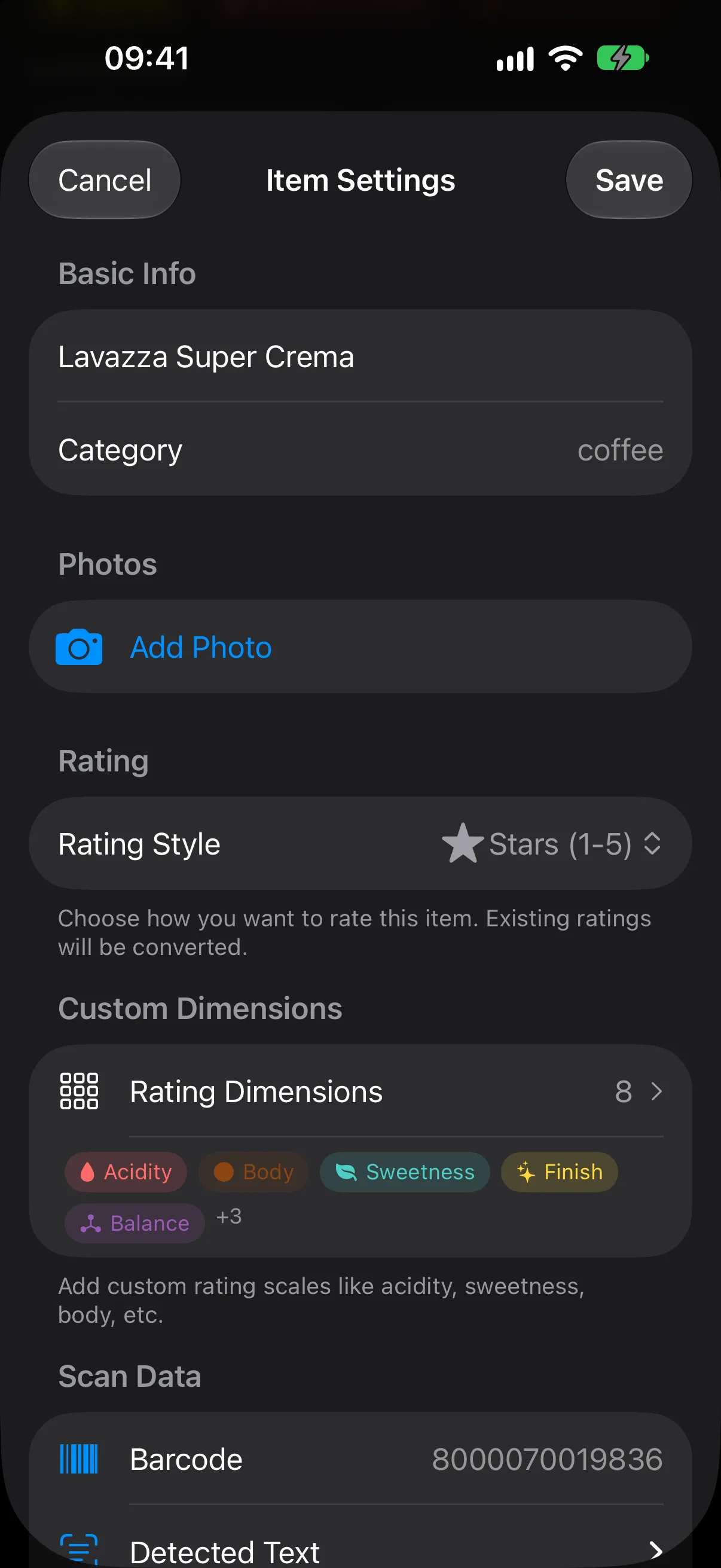
Stars are the default and are free. Under Item Settings (the icon in the top right of an item page), Pro lets you switch an individual item to a scale that suits it better: 1–10, thumbs up and down, or hearts. Existing ratings are converted when you switch.
Rating dimensions Pro
Some things aren't one number. Dimensions let you rate a single item on several axes at once — acidity, body and sweetness for a coffee; tannins and finish for a wine; pacing and prose for a book.
Open Item Settings → Rating Dimensions. Start from a preset for the item's category, or build your own set. Each dimension then gets its own metric card on the item page, with its own trend over time.